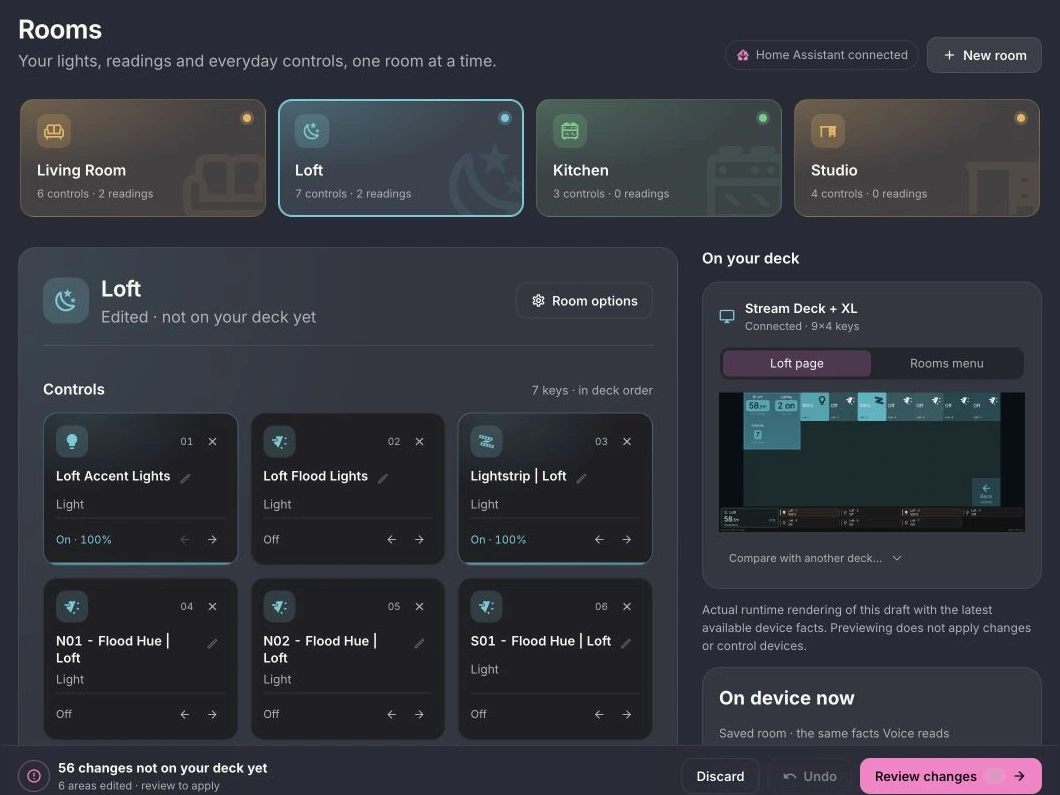
01Rooms & lighting
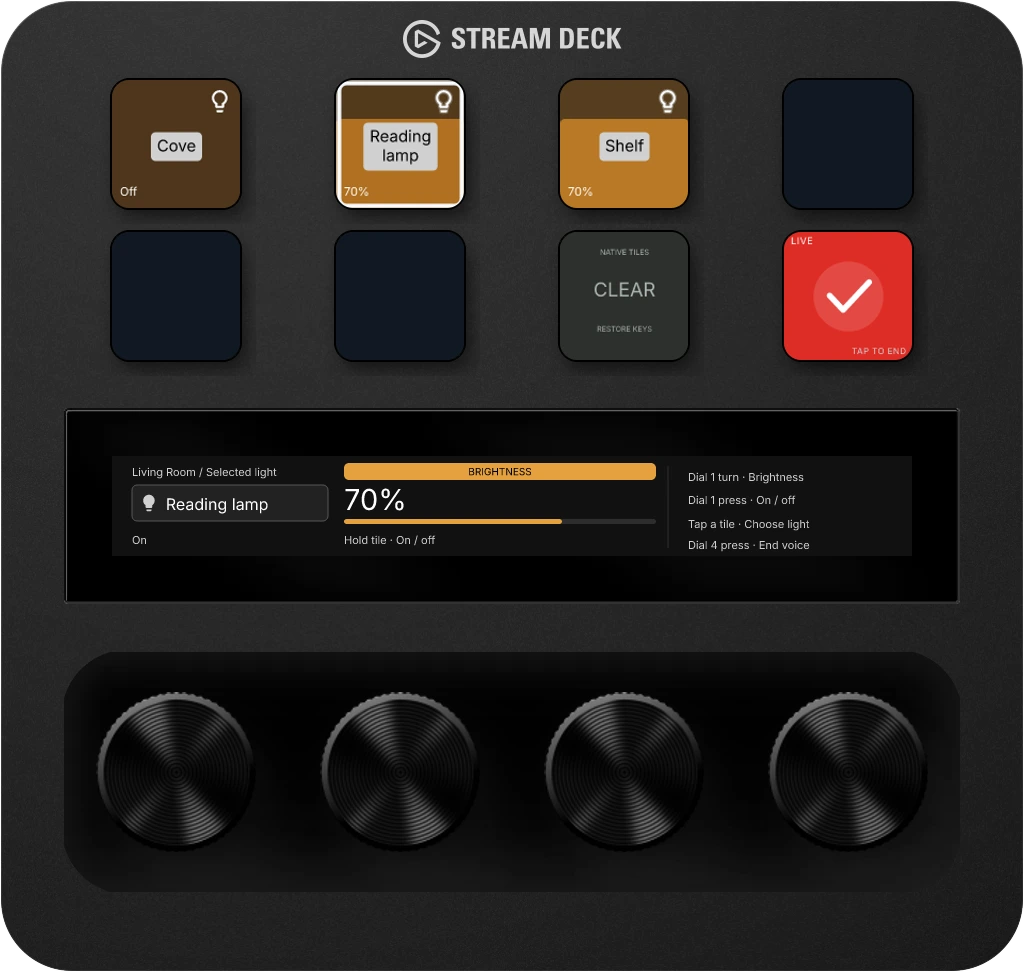
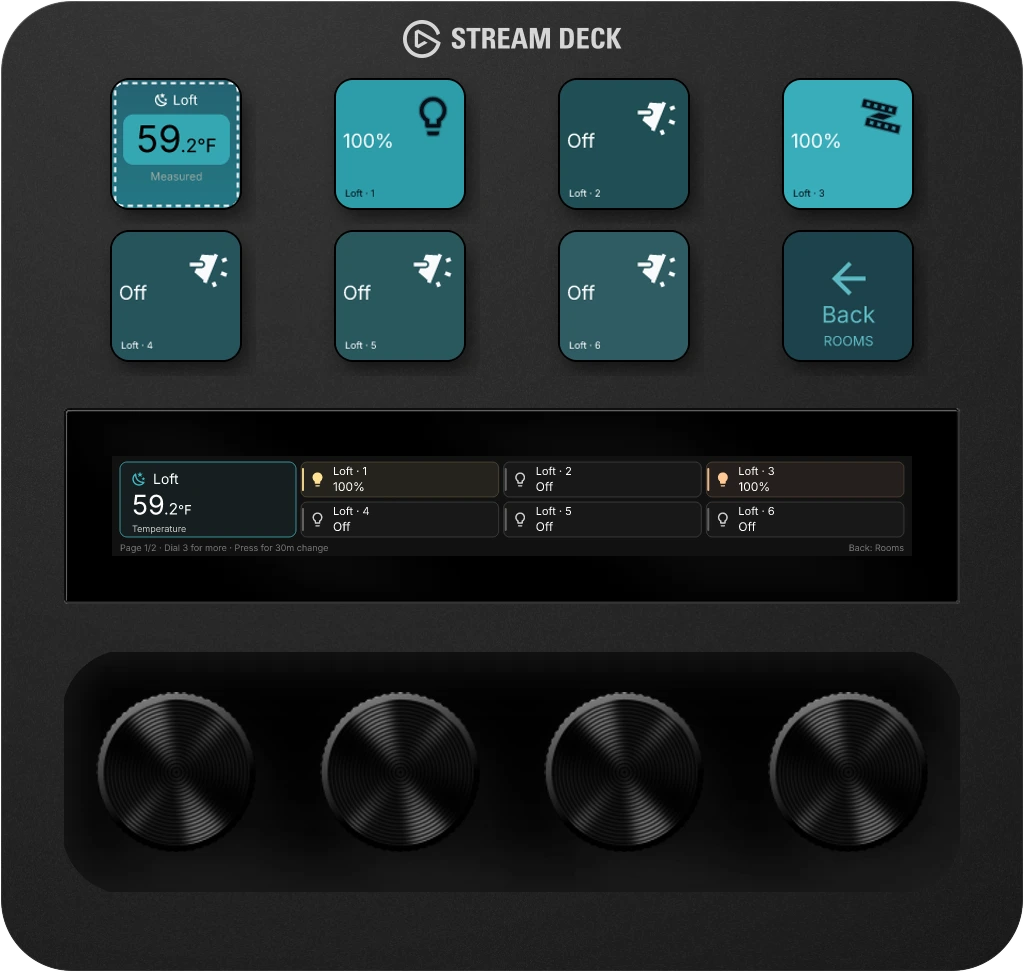
Your room, a button away.
See which lights are on, check the room’s readings, and reach for the control you need.
Give your Home Assistant home physical controls on Stream Deck and other supported devices. Check a room, adjust the lights, or see what’s using power, right from your desk.
Keep your dashboards. Give the everyday jobs a place on your desk: check a room, find its lights, or see what is drawing power.
01Rooms & lighting
See which lights are on, check the room’s readings, and reach for the control you need.
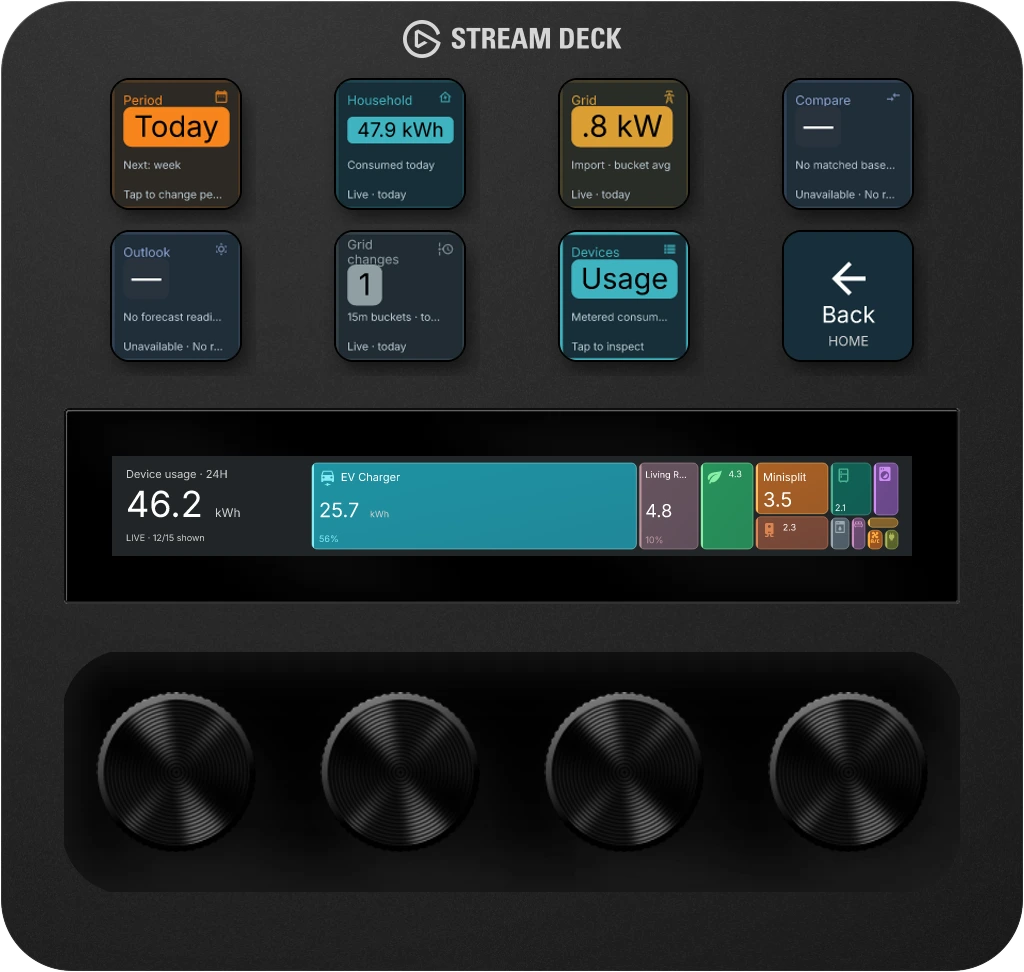
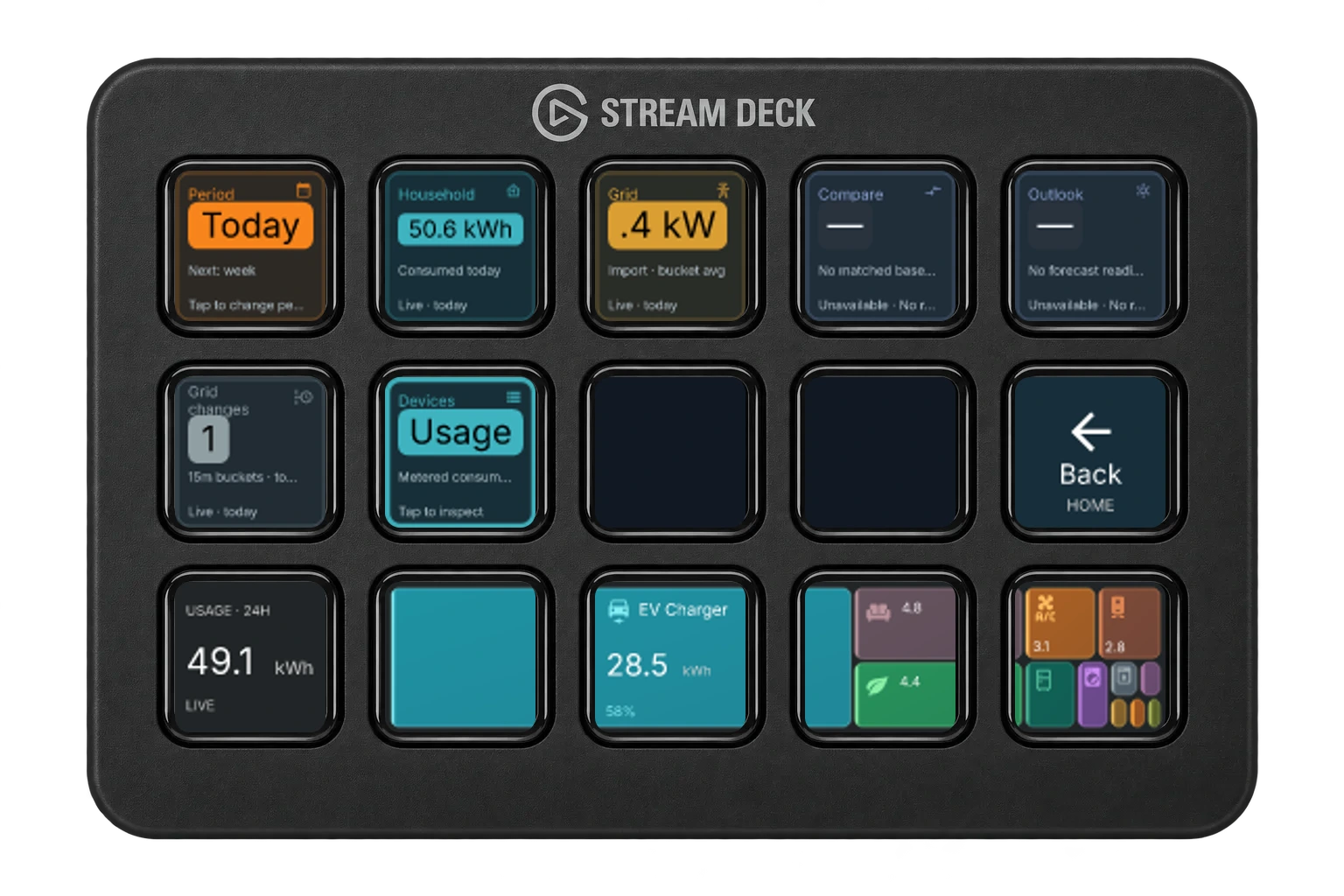
02Energy awareness
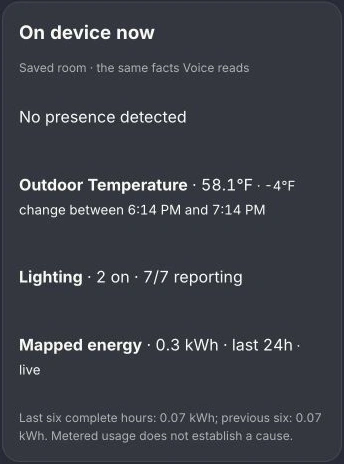
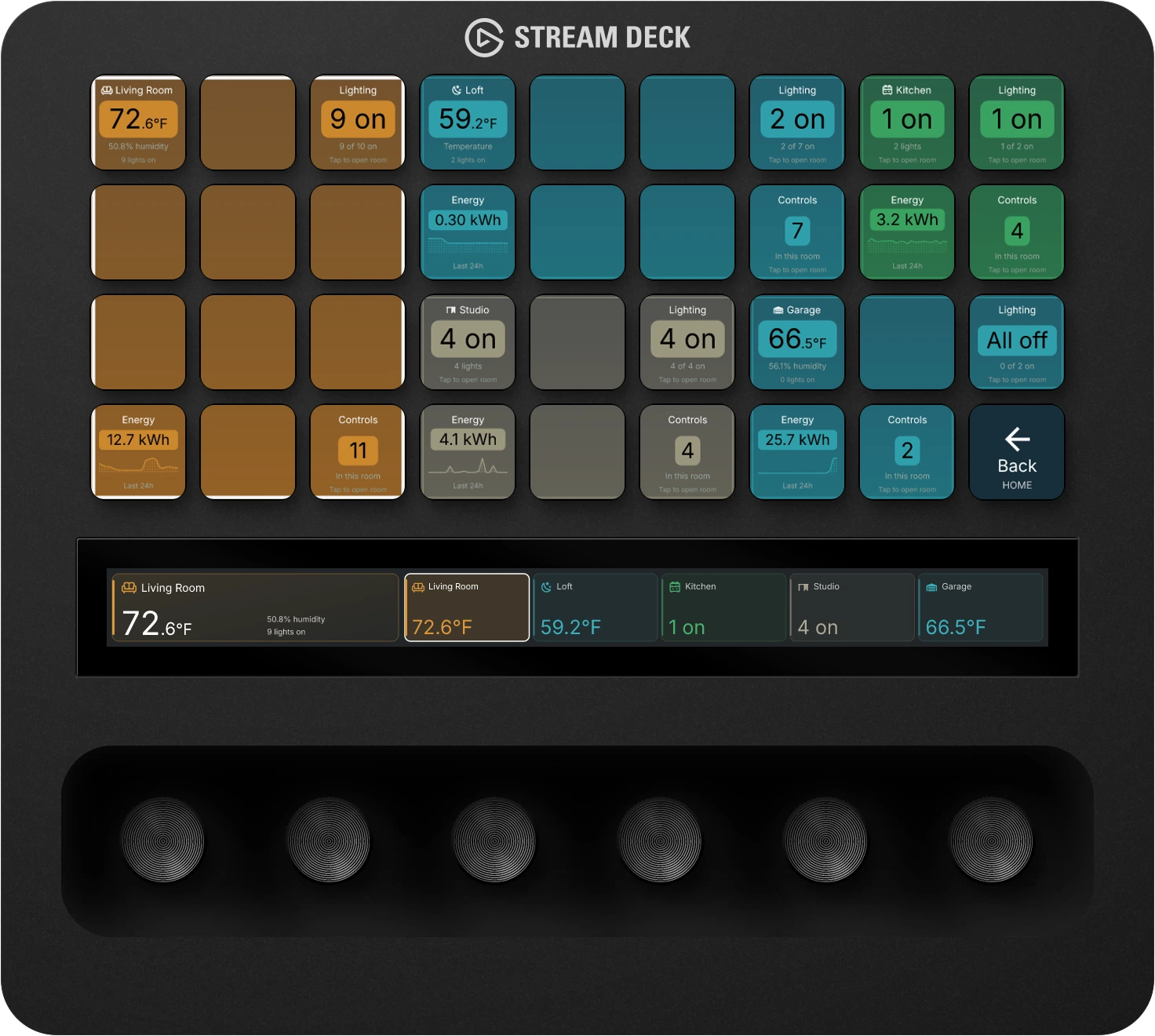
See how much power your home is using and which devices use the most. Check it on your desk, with readings from Home Assistant.
Connect your energy meters and sensors through Home Assistant.
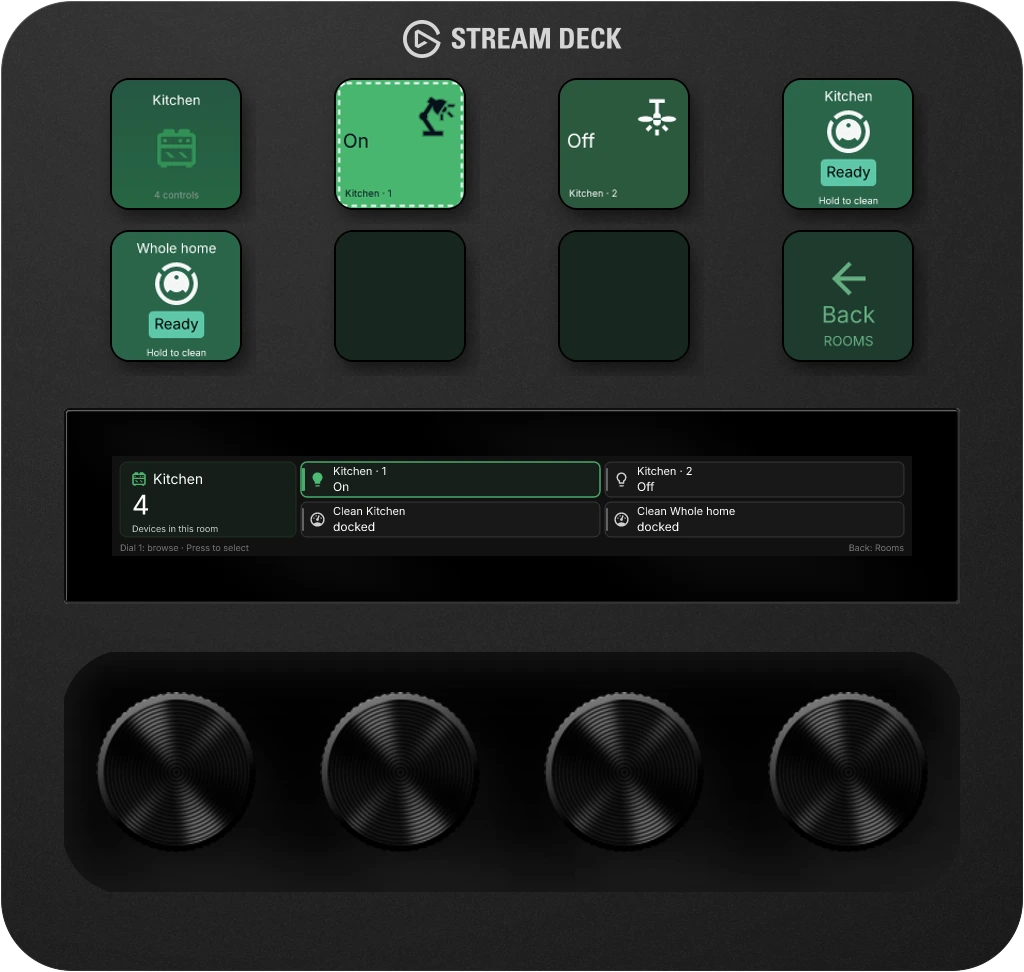
03Room-aware actions
Give different jobs distinct controls. This Kitchen view puts room cleaning beside whole-home cleaning, with the vacuum’s current status visible on the display.
Room cleaning needs a compatible vacuum with a room map.
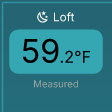
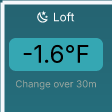
04Climate context
See the temperature now and how it has changed over the last 30 minutes, without leaving your room controls.
Choose the temperature sensor you want to follow.
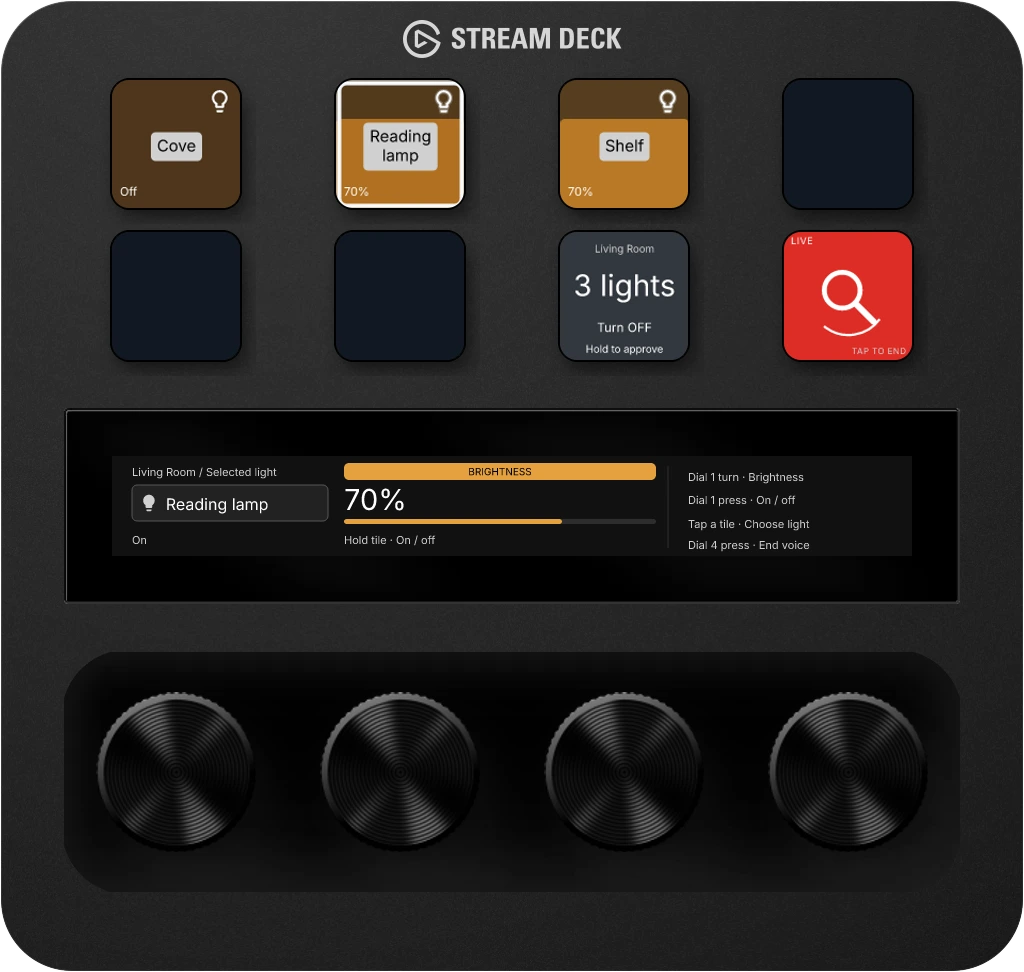
Ask for your living-room lights. Bring their controls into view. Keep using the keys and dials while you talk.
“Show my living room lights.”
Example conversation shown with sample data.
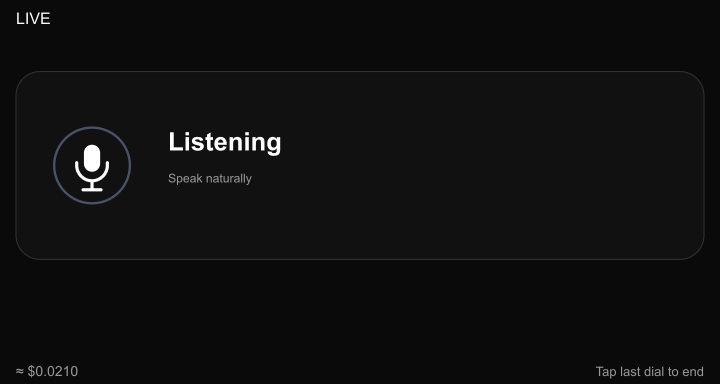
Double-tap the last dial to start. Ask about your room or bring up the controls you need. Stoat answers using information from your connected home.
Bring lights, useful information or an interactive display into view. Keep using keys and dials while you talk.
When Voice proposes a change to your lights or thermostat, you see what will change and hold a key to approve it. You stay in control.
Stoat Voice uses your OpenAI API key. OpenAI usage charges apply.
Stoat Voice uses your OpenAI API key. OpenAI usage charges apply. Keep Studio open with a microphone, speakers, a supported device, and an internet connection. Your connected home supplies the room information and controls.
Supported hardware →Bring a room’s lights, readings and everyday actions together. Arrange them in Studio and see how they will look on your device.
Review your changes, then apply them when you’re ready.
Your Home Assistant instance, devices, dashboards and automations stay in place. StoatOS adds a physical interface to supported parts of that setup.
Connect your Home Assistant instance in StoatOS. Choose the rooms, lights and readings you want at your fingertips.
Use a compatible device for the views you want. Key grids, dials and display strips offer different ways to browse and act.
Find your deviceYes. Ask about your rooms or bring up their controls, then continue with keys and dials. Voice-proposed light and thermostat changes wait for you to hold a key to approve them. Stoat Voice uses your OpenAI API key. OpenAI usage charges apply. Keep Studio open with a microphone, speakers, a supported device, and an internet connection. Your connected home supplies the room information and controls.
See Stoat Voice in action →No. Keep using Home Assistant as you do today. StoatOS provides focused physical views and controls alongside your existing dashboards.
Your screens reflect the devices you connect through Home Assistant. Energy views need meter or sensor readings; room cleaning needs a compatible vacuum with a room map.
No. You connect Home Assistant in the StoatOS desktop app on your computer.
Get the desktop app →No. StoatOS is an independent product. Home Assistant and Stream Deck are products of their respective owners.
Try StoatOS with your Home Assistant setup for 7 days. No card required.